
Contribution Report
The Contribution Report is a powerful fundraising tool inside Campaign Deputy that gives you a complete, real-time view of every contribution recorded in your current election cycle. You can filter, sort, customize columns, and export the data in multiple formats — making it your go-to report for data review, compliance prep, donor outreach follow-up, and fundraising analysis.
To access it, navigate to Reports in the left-hand sidebar, then click Contribution Report under the Fundraising Reports tab.
Summary Stats Bar
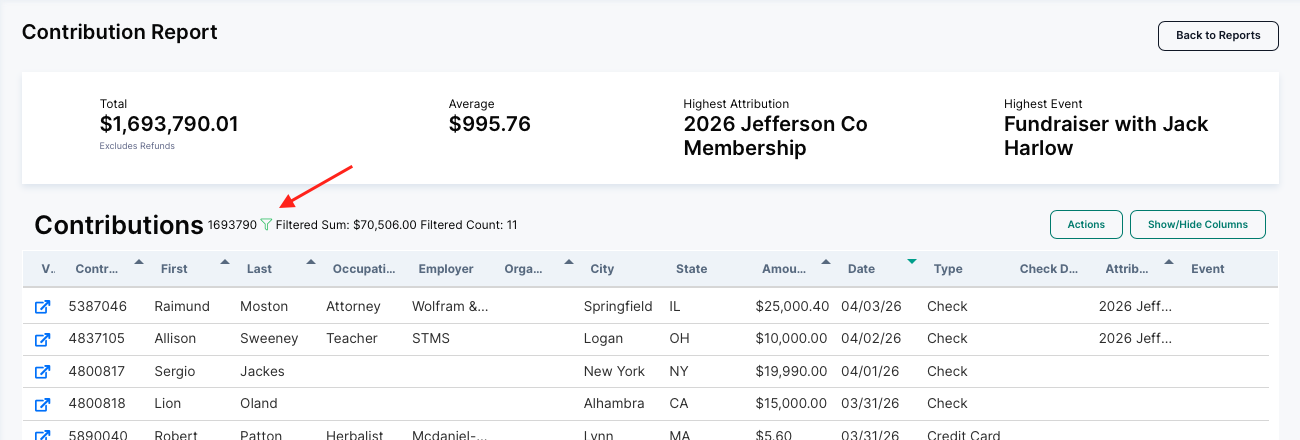
At the top of the report, four key metrics are displayed at a glance:
Total — The sum of all contributions in the current cycle. Refunds are excluded from this figure.
Average — The average contribution amount across all contributions currently displayed in the report.
Highest Attribution — The attribution code (e.g., a membership or fundraising event name) that has brought in the most money. This is useful for understanding which outreach or fundraising efforts are performing best.
Highest Event — The event linked to the highest total contributions. If you use Campaign Deputy's Events feature to track fundraisers, this stat tells you your top-performing event at a glance.
Contributions Table
Below the stats bar is the main contributions table, which lists every individual contribution. The total raised is displayed next to the "Contributions" heading along with a filter icon. When filters are active, a Filtered Sum and Filtered Count are also shown, so you always know exactly how many records and what dollar amount your current filter is displaying.
Sorting
Every visible column can be sorted. Click the column header to sort ascending; click again to sort descending. The currently active sort column is indicated by a highlighted arrow (up or down) in the column header. By default, contributions are sorted by Date in descending order (most recent first).
Filtering Contributions
Click the filter icon (funnel icon) next to the record count to open the Filter Contributions modal. You can narrow the report down using any combination of the following criteria:
Receipt Start Date / Receipt End Date — Filter contributions to a specific date range. Use the date picker to select start and end dates.
Amount From / Amount To — Filter by contribution amount. Enter a minimum, maximum, or both to focus on a specific dollar range.
First Name / Last Name — Search for contributions from a specific individual by name.
Organization Name — Filter contributions associated with a specific organization.
Attribution — Select from a dropdown list of your attribution codes to view contributions associated with a particular fundraising effort or outreach method.
Event — Select a specific event from the dropdown to see only contributions linked to that event.
Origin Code — Filter by the original source code recorded on the contact record itself.
Source Code — Filter by the source code recorded on the contribution itself, which can differ from the origin code on the contact.
ActBlue Ref Code — Filter contributions that came in through ActBlue using a specific reference code.
Fund Type — Filter by fund type (e.g., Primary, General) using the dropdown.
After setting your filters, click OK to apply them. The table and the summary stats at the top will both update to reflect only the filtered contributions.
Show/Hide Columns
Click the Show/Hide Columns button in the upper right of the table to open a panel that lets you customize exactly which data columns appear in the table. This is especially useful when preparing data for a specific purpose (e.g., a compliance review, a mail merge, or a donor call list).
Columns are organized into the following groups:
Person First, Middle, Last, Suffix, Salutation, Primary Phone, Email, Occupation, Employer
Organizations Organization Name
Address Address 1, City, State, Postal Code, County
Work Address Address 1, Address 2, City, State, Postal Code
Contribution Contribution ID, Date, Amount, Election Type, Cycle, Year, Office Sought, Type, ActBlue?, ActBlue Ref Code, ActBlue Entity Name, Attribution, Event, Source, Origin Source, Deposit Name, Deposit Date, Deposit Unique ID
Historical (Prior Cycles) Cycles
After selecting or deselecting the columns you want, click Choose to apply your changes, or Close to cancel.
Tip: The Historical columns are particularly useful when you want to compare a donor's current-cycle giving to what they gave in prior cycles — all in one view.
Need this information in an Excel file? Click "Actions" for your export options.