
How to Merge Duplicate Records
Reviewing and Flagging Records
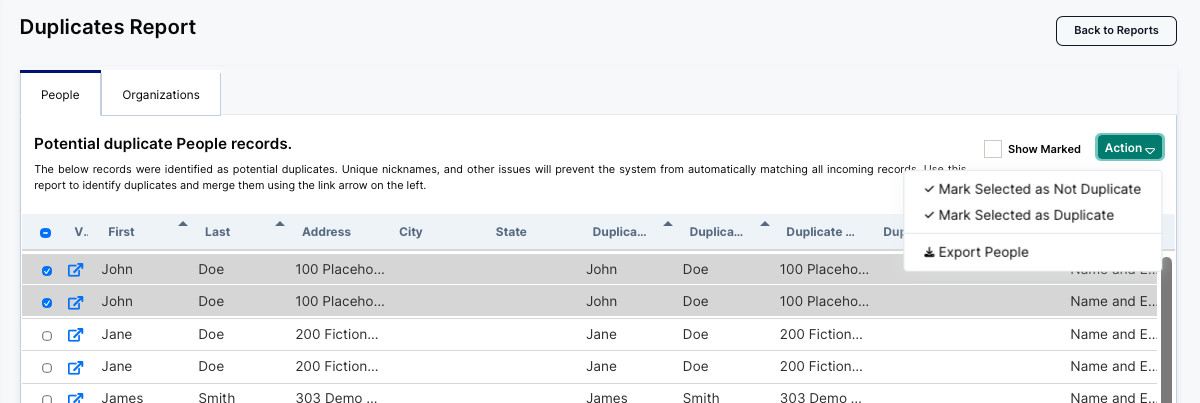
If you check the boxes next to one or more rows, the Action dropdown lets you mark those pairs as Not Duplicate (a false positive) or Duplicate (confirming they should eventually be merged), or Export People to download the list. The Show Marked checkbox toggles whether previously reviewed/marked rows are displayed.
Performing a Merge
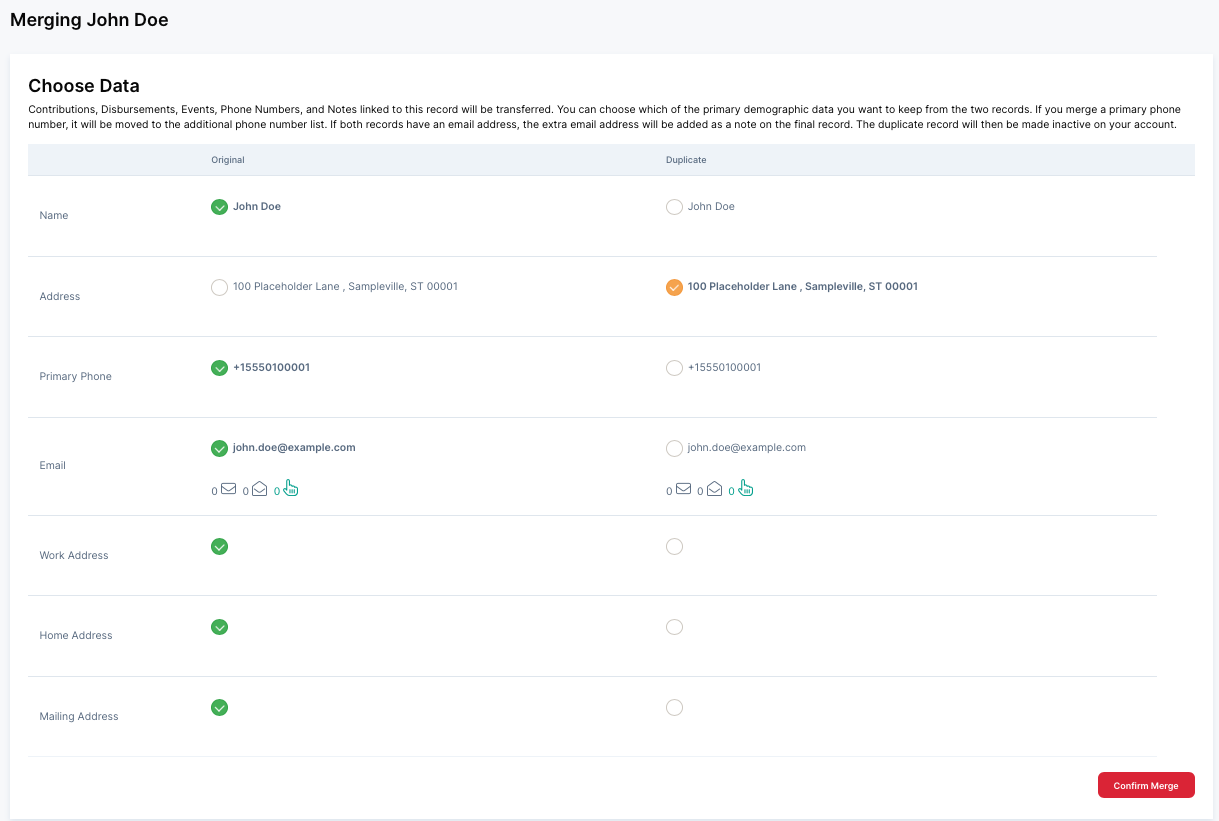
Click the small link-arrow icon at the left of any row to open that pair's merge screen. This page presents a Choose Data view with the Original record's fields in the left column and the Duplicate's in the right column, covering Name, Address, Primary Phone, Email, Work Address, Home Address, and Mailing Address. Each field has a selector so you decide, field by field, which version's data becomes the "keeper" values on the final merged record — you aren't forced to take everything from one side.
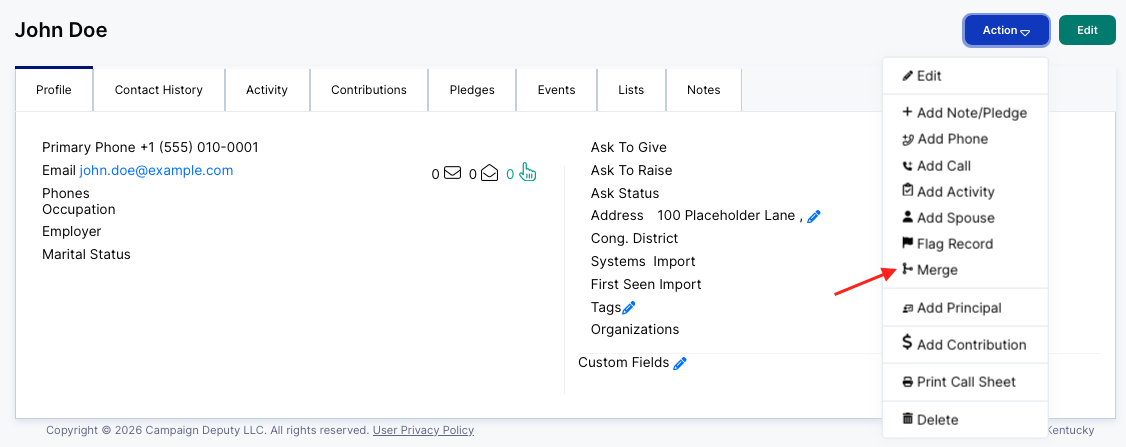
You can also merge duplicates via an individual profile under the "Action" menu.
What Happens to the Data
Contributions, disbursements, events, phone numbers, and notes attached to either record are transferred onto the surviving record, so that history isn't lost. If a phone number was marked as primary on the record you don't keep, it isn't discarded — it gets moved into the additional phone numbers list instead. If both records have an email address, the one you don't keep as primary is preserved by being added as a note on the final record, rather than being deleted.
Once you click Confirm Merge, the duplicate record is deactivated (made inactive) on the account — it isn't permanently deleted, so the underlying record can still be found/restored if needed, but it will no longer appear as an active person/organization.
Too many records to merge manually? Reach out to support@campaigndeputy.com for help merging your duplicate profiles in bulk.